
What is Meta Pixel and How to Set It Up on Your Website?
Do you want to measure the success of your Meta ad campaigns? Setting up the Facebook Pixel, now infamous as Meta Pixel, can help you get insights into social media ad campaigns. From tracking, optimizing, to measuring success, you can do everything in a matter of a few minutes.
There is no denying that Facebook and Instagram ads can help promote your products, services, and brand across nations. You can generate maximum traffic, increase the conversion rate, and drive sales. When creating Meta Ads campaigns, ensure you install the Meta Pixel, one of the best tracking tools available in 2025-26.
What is Meta Pixel?
It is an analytics tool that can help you measure the effectiveness of your Facebook ad campaigns to drive actions on your website. It is accessible on your Meta Ads Manager. In February 2022, Facebook rebranded the pixel from the Facebook Pixel to the Meta Pixel, supporting both Facebook and Instagram ads.
Once installed, you will get a unique Meta Pixel ID assigned to your website. You can use that code to track user activity on your site, including page views, purchases, add-to-cart events, and much more. You can easily track, optimize, and measure the success of your Meta ad campaigns.
See More: Top 10 Instagram Tools to Boost Growth 2026
Pro Tricks to Post Instagram Stories for Your Business
Why Meta Pixel is Essential?
It is important for the following reasons:
- Meta Pixel can help track conversions on Meta Ad campaigns to measure the actions web users take on your website
- Creating retargeting audiences from site visitors who engage with your content.
- Optimizing your campaigns using conversion rates for enhanced performance.
Step-by-Step to Set up and Install Meta Pixel in 2026
Follow these steps to make the most of this advanced analytics tool:
Step 1: Create Your Meta Pixel in a Few Minutes
- Log in to your Meta Business Suite
- Click “All Tools” from the left-hand menu, search, and click on the “Events Manager” tab
- Click Connect Data from the left-hand side and select Web
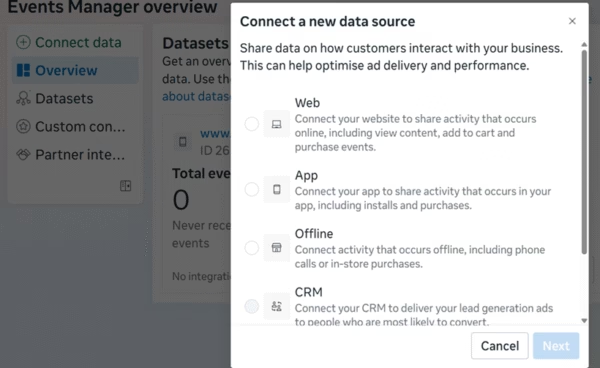
- Choose Meta Pixel and then click Connect
- Enter a business name for your Pixel, such as your website name pixel, and input your site URL (optional)
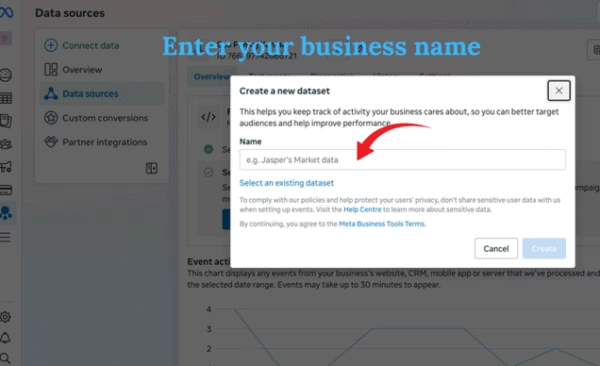
Step 2: Add the Meta Pixel to your Website
Once you’ve created the Pixel, you’ll need to set it up. You can choose the following methods:
Option 1: Enter Manual Code
You just need to copy the provided Pixel code and paste it into the <head> section of your site’s HTML, save the changes, and publish the update.
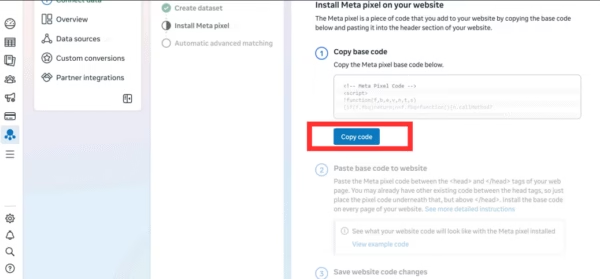
IF you have wordpress website, then log in WordPress Dashboard, click Theme File Editor, and paste your pixel code between the <head> and </head> sections in the header.php file.
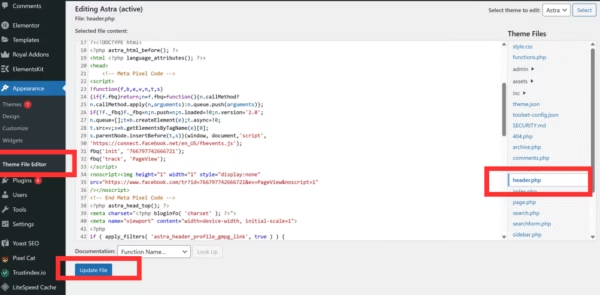
Option 2: Make the Most of a Partner Integration like WordPress
You can easily choose your platform from the integration list and follow the guided steps to connect your pixel automatically
Option 3: Email Instructions to a Developer
You just need to enter the email address of your developer, and Meta will send the instructions to install the tool.
Step 3: Testing Your Pixel
In the next step, all you need to do is to ensure that your Pixel is capturing data from your site or not. Use the Test Events tab in Events Manager to do that.
Ensure you run a test on your site by clicking a button or completing a form. This will help verify that the event is logged in the Test Events tab.
Step 4: Be Ready with Your Conversion Tracking Tool
- Return to Meta’s Events Manager tool and choose your new pixel.
- Select Add Events and choose from the Pixel to track specific actions on your site, such as purchases and submissions.
- You can configure Event Tracking manually by packing custom event code or by using the Event Set up Tool. This lets you add events without adding any code.
Frequently Asked Questions
Can I set up Meta Pixel events automatically?
Yes, you can enable automatic event detection to get updates on which events Meta automatically detects. But if you’ve already set up specific events manually, be aware of duplicate tracking. You can use the Test Events Tool in Meta Events Manager to check the authenticity while preventing potential duplicates.
What does Automatic Advanced Matching mean in Meta Pixel? Can I enable it?
Automatic Advanced Matching allows Meta Pixel to have and share visitor details like phone number or email securely when users enter them on your website. It can boost ad attribution, remarketing, and audience targeting precision.
Yes, you can enable it in your Meta Pixel settings. Ensure you comply with Meta’s privacy policy and inform your users about data usage.
What is Meta’s Conversions API, and Is It Necessary to set it up?
It sends conversion data directly from your site’s server to Meta, minimizing reliance on browser-oriented tracking like cookies. It is important to follow a cautious approach because server-side tracking restricts control over what data is shared. Ensure you consider Meta’s API documentation and discuss with your developer for a better solution.
Wrapping Up
This is a complete guide on understanding, installing, and setting up Meta Pixel Tracking in 2026 without any stress. The process is a smooth sail and helps you track, optimize, and measure the Meta ad success with ease.





About Author

Micky Joseph
Micky is a passionate blogger, who writes enriching posts on web design, web development and technology news. He loves writing about web development, tips, tools, tutorials, cloud, hosting, domain, and also sharing knowledge about latest technology news. He also writes about cms, programming language and various software. Follow us on FlipBoard.